Linux Administrator
Overview 📝
This documentation talks about the various commands that are used as part of Linux administration in day 2 day activities.
Pre-requisite Setup Instructions 🚧
Download Oracle VM Virtual Box from Click here.
Download RedHat Linux ISO Click here.
Important Commands ⌨️
- Adding a User
- Add Operation
useradd ant - Verification, check if a folder ant is created in the /home directory
  cd /home/
  ls ant
- Add Operation
- Adding a Group
- Add Operation
groupadd insects - Verification, check if an entry is present in /etc/group file
cat /etc/group | grep insects
- Add Operation
- Assigning User to Group
- Modify User
usermod -G insects ant - Verify if User is added to the Group
  cat /etc/group | grep insects
  #insects:x:1004:ant
  #group:encryptedpasswd:groupid:userid
- Modify User
- Checking Different files under /etc
- passwd [UserFile]
cat /etc/passwd | grep ant #ant:x:1002:1003::/home/ant:/bin/bash #user:encryptedpasswd:userid:groupid:homedirectory:shell - group [GroupFile]
cat /etc/group | grep ant #insects:x:1004:ant #group:encryptedpasswd:groupid:userid - shadow [PasswordFile]
  cat /etc/shadow | grep ant
  #ant:!!:19835:0:99999:7:::
- passwd [UserFile]
- One line command to create the User and Assign it to a Group
- Create User and add to Group
useradd -G insects -s /bin/bash -c "This is a bug" -m -d /home/bug bug # -G GROUP # -s SHELL # -c COMMENT # -m CREATE HOME DIRECTORY # -d HOME DIRECTORY - Create password for the User
passwd bug - Verification
  cat /etc/shadow | grep bug
  #bug:$6$tipJYGx11g3arh2U$R7nEyhEIy90wDEtPf32Zr4T0EWHVtcrH6I6h1Nd8IpRbrHd1v4mc1Mbn4XY2A.If/OuCnW.BPshjbOLL1uIMv1:19835:0:99999:7:::
  #This is an encrypted password in shadow file

  cat /etc/passwd | grep bug
  #bug:x:1003:1005:This is bug:/home/bug:/bin/bash

  cat /etc/group | grep bug
  #insects:x:1004:ant,bug
- Create User and add to Group
- Delete User, Group
- User
  userdel -r ant
  #Remove home directory as well
  groupdel insects
- User
- Changing Password policy
- Per User
chage -m mindays -M maxdays -d lastday -I inactive -E expiredate -W warndays user #bug:$6$tipJYGx11g3arh2U$R7nEyhEIy90wDEtPf32Zr4T0EWHVtcrH6I6h1Nd8IpRbrHd1v4mc1Mbn4XY2A.If/OuCnW.BPshjbOLL1uIMv1:19835:0:99999:7::: #So from the above let's consider the following 19835:0:99999:7::: # -d lastday: days since 1 Jan 1970 the password was change so we see 19835 days (April 22, 2024). # -m mindays: After how many days can a user change the password, currently no restriction hence 0, if set to 5, the User can change password after 5 days. # -M maxdays: After how many days User should be prompted to change password, Current is 99999 that is alot, hence we have to change it to something meaningful. # -W warning: Warn User when password is going to expire. # -I Inactive: Set User as inactive after number of days Password expires. # -E Expire: Days after which the User to expire from 1 Jan 1970. #Let's apply this to the user bug using chage chage bug -m 5 -M 90 -W 10 -I 3 #bug:$6$tipJYGx11g3arh2U$R7nEyhEIy90wDEtPf32Zr4T0EWHVtcrH6I6h1Nd8IpRbrHd1v4mc1Mbn4XY2A.If/OuCnW.BPshjbOLL1uIMv1:19835:5:90:10:3:: - All Users
  cat /etc/login.defs
  #PASS_MAX_DAYS   99999
  #PASS_MIN_DAYS   0
  #PASS_MIN_LEN    5
  #PASS_WARN_AGE   7
  #UMASK 077
- Per User
- Sudo Commands
- Switch User to root
su #Prompts for root password - Switch User to bug
su bug - Add users to sudoer group using wheel Group to execute certain commands like dmidecode which are accessible only to root
  usermod -aG wheel smore

  #Test using the sudo command
  sudo dmidecode
  sudo fdisk -l
- Switch User to root
-
Other important commands - Monitoring and Manage processes
- Filesystem Usage
df -h #h is human readable format - Disk Usage
du -h #Details of each file in the filesystem - Check system uptime
uptime #Gives basic information like since when is the system up and running etc. - Checking processes running in server
top - Check the swap and memory
free - Check list of open files
lsof - Networking command, incoming network
tcpdump -i enp0s3 - Network statistics using netstat
netstat - Check processes runnning using ps -ef
ps -ef | grep java - Force kill a process using kill command
kill -9 47474
- Filesystem Usage
- Controlling Services and daemons using systemctl
- Get all the services running
systemctl --all - Check a particular service status
systemctl status firewalld.service - Stop the service - i.e. it will change the status to inactive
systemctl stop firewalld.service - Restarting the firewall service
systemctl restart firewalld.service - Reload the cofiguration of the service
systemctl reload firewalld.service #Reload the config without impacting the service - Configure the service to start during linux start time and vice-versa
systemctl enable firewalld.service #This will add the service to start at restart systemctl disable firewalld.service #This will remove from the startup list - Prevent accidental starts of the service by masking the service
systemctl mask firewalld.service
#The service is masked now you wont be able to start it until it is unmasked.
systemctl unmask firewallId.service
- Get all the services running
- Secure SSH login using keys
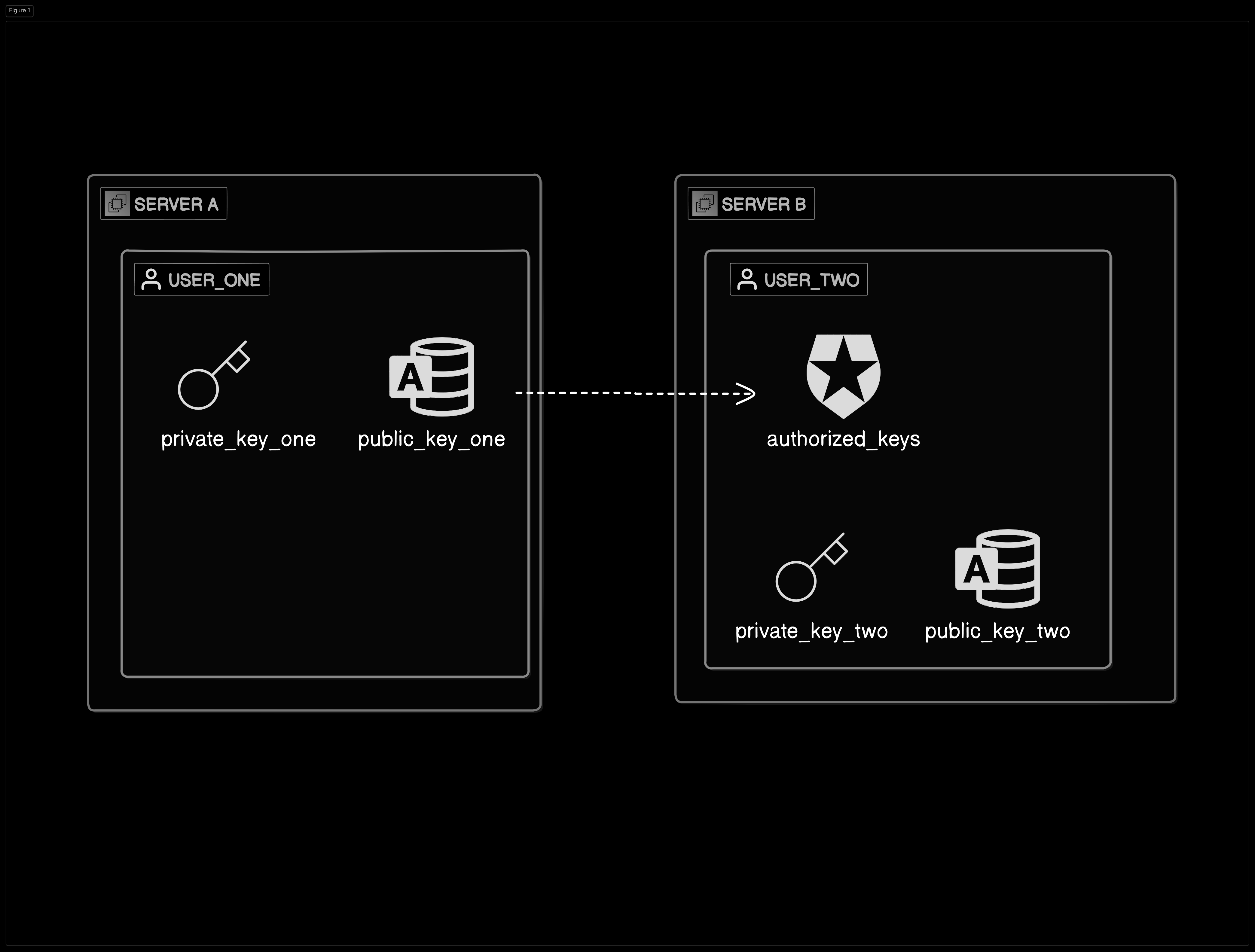
- If Machine A wants to login to Machine B without providing username/password.
- Generate the key pair in Machine A
ssh-keygen #Enter password if you want to else you can ignore cd /home/usera/.ssh #You will find two new files, id_rsa.pub [public key] and id_rsa [private key], copy the public key - Copy the public key of the USER ONE from Machine A to Machine B USER TWO’s authorized_keys file
cd /home/userb/.ssh
#Login to server B, as USET TWO
vi authorized_keys
#Create a new file if not present and paste the content of public key copied in the above step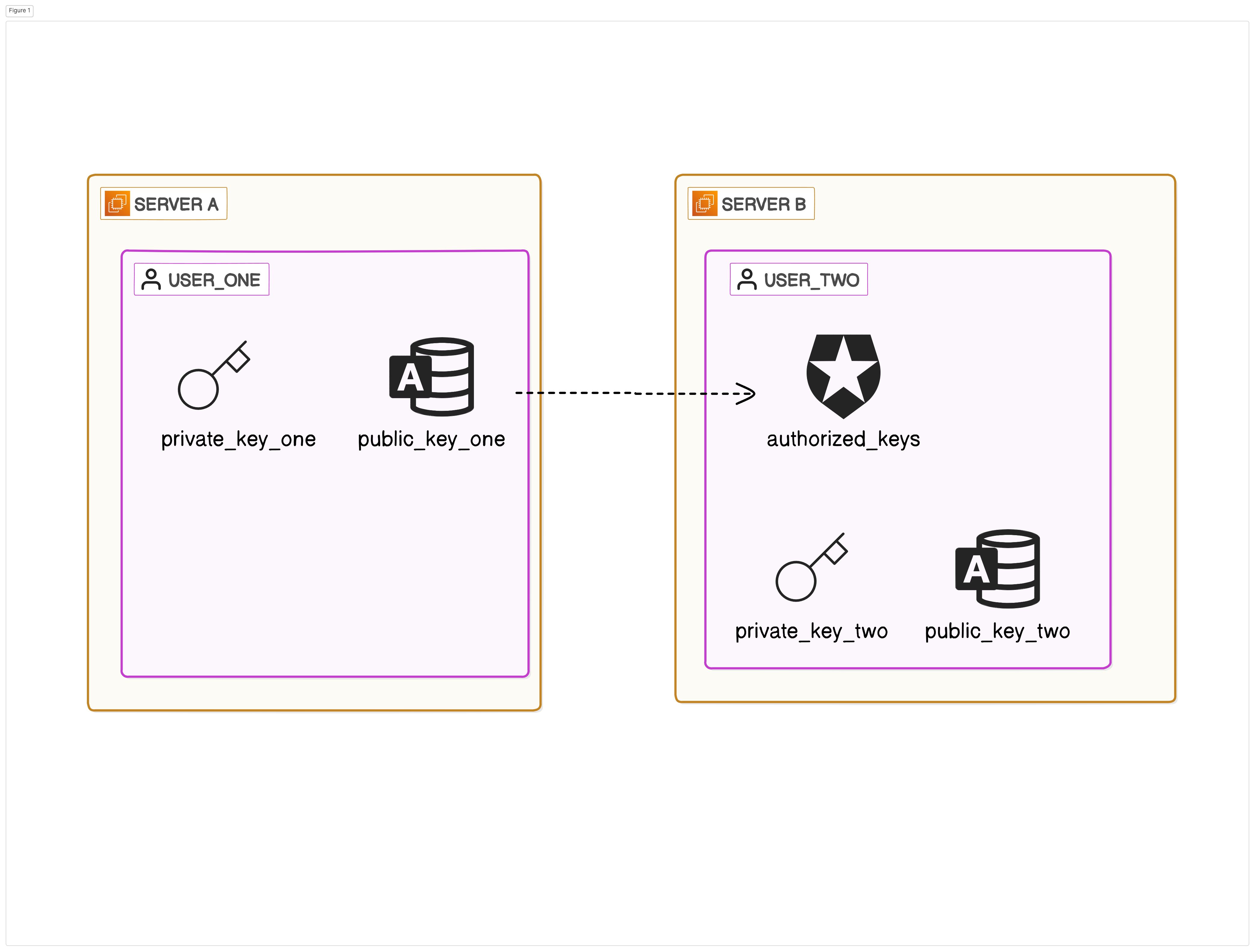
- Generate the key pair in Machine A
- If Machine A wants to login to Machine B without providing username/password.